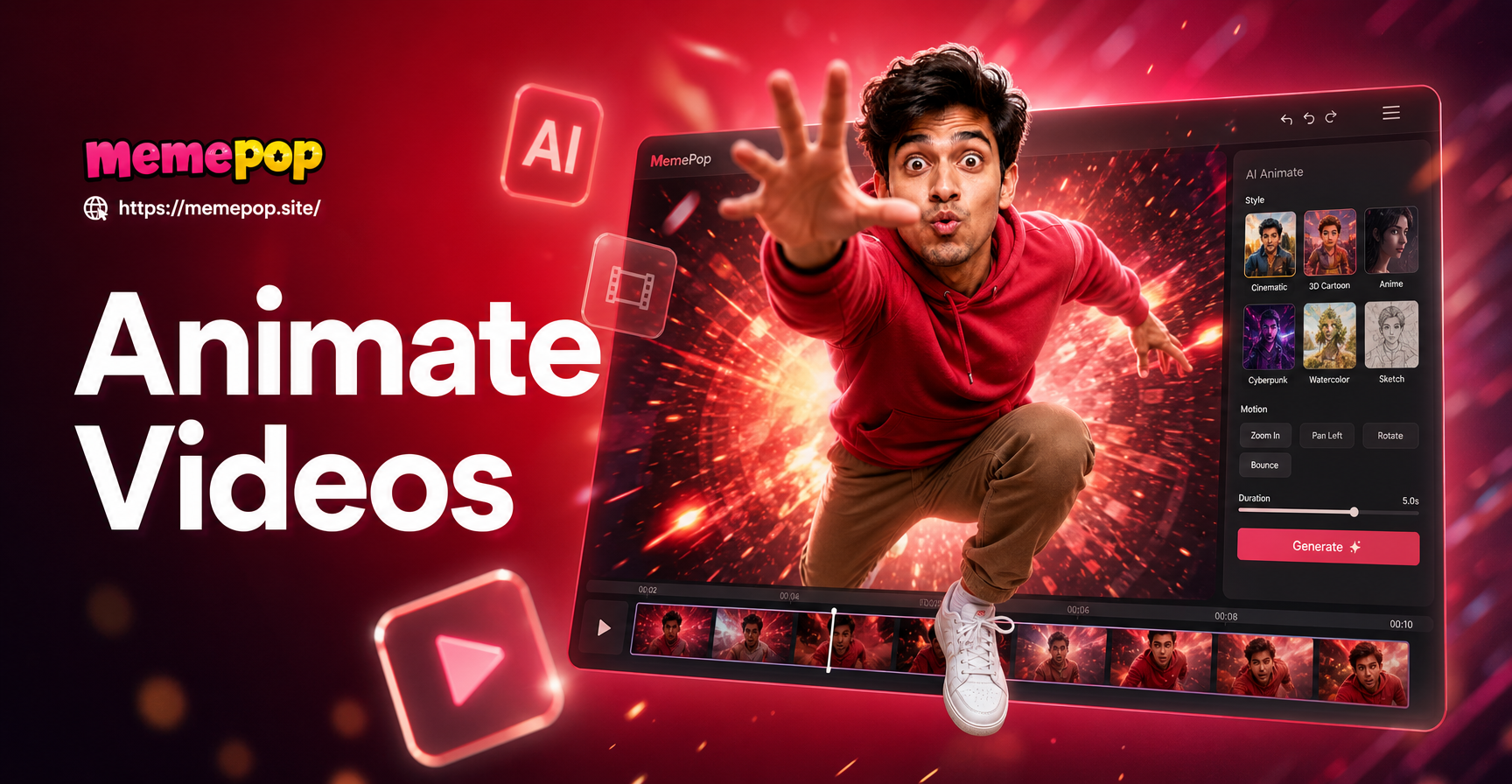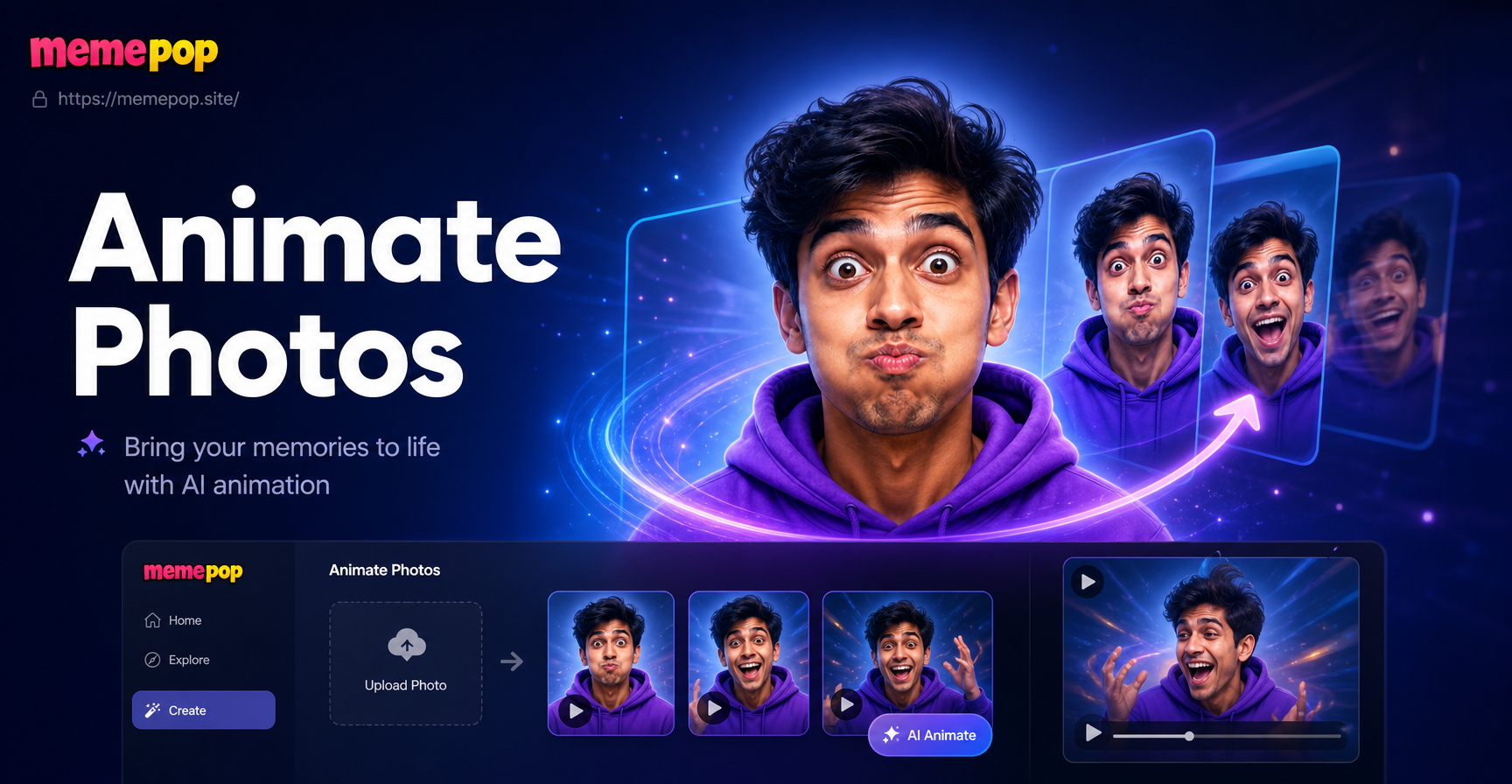
Turning a still photograph into a moving picture sounds like magic, but with modern AI it is a simple and fast process you can do on your phone. Animating pictures means adding subtle or dramatic motion to a static image. It could be a portrait that blinks and smiles, a landscape where clouds drift across the sky, or a product photo that rotates gently. This guide explains how to animate pictures using memepop, a mobile app designed for AI image and video generation. You do not need design experience or expensive software. Just upload a photo, choose a motion style, and let the AI handle the rest.
What Does It Mean to Animate a Picture?
Animating a picture involves using software to add motion to a still image. Traditional animation requires drawing individual frames by hand or using complex video editing tools. AI animation is different. The AI analyzes the photo, identifies the main subject and background, and then predicts how that subject would move in real life. For example, when you animate a portrait, the AI can make the person blink, turn their head slightly, or smile. When you animate a landscape, the AI can make water ripple, trees sway, or clouds move. The result is a short video clip, usually between 2 and 10 seconds, that gives the illusion of life.
Why Animate Pictures with AI?
AI picture animation has exploded in popularity because it removes the technical barriers. Here are a few reasons creators love it:
- Speed: A static photo becomes a moving clip in under a minute.
- No skill required: You do not need to learn After Effects or Blender.
- Mobile friendly: Everything happens on your phone, so you can animate pictures anywhere.
- Social media ready: Animated pictures grab attention in feeds where static images get scrolled past.
- Cost effective: Many AI tools offer free trials or affordable subscriptions, far cheaper than hiring an animator.
How to Animate Pictures with memepop
memepop is an all-in-one AI design app available on Google Play. It includes text-to-image, image-to-image, and image-to-video tools. For animating pictures, the image-to-video feature is the key. Follow these steps to turn your still photo into a moving picture.
Step 1: Download and Install memepop
Go to Google Play on your Android phone and search for memepop. Install the app and open it. You will need to sign in or create a free account. The app is mobile only, so make sure you are using a phone or tablet. The interface is clean and beginner friendly, with all creation tools on one home screen.
Step 2: Upload Your Picture
Tap the image-to-video or animate option in the app. Choose a photo from your gallery. For best results, pick a clear, well-lit image where the subject is in focus. Portraits work especially well, but you can also animate pets, landscapes, product shots, and more. The AI needs to see the subject clearly to create realistic motion. Avoid photos with heavy filters, extreme lighting, or multiple overlapping subjects at first.
Step 3: Choose an Animation Style
memepop offers a large library of animation styles and motion templates. You can choose from subtle effects like blinking and smiling for portraits, or more dramatic effects like turning heads and full body movement. For landscapes, look for templates that add water flow, wind, or flying birds. The app previews each style on a thumbnail, so you can compare before applying. This is where the fun begins. Try a few different styles to see which one fits your picture best.
Step 4: Adjust Settings and Generate
Some styles let you adjust motion intensity or duration. Keep the default settings for your first try, then tweak as needed. When you are ready, tap the Generate button. The AI processes your photo for a few seconds to a minute depending on the style and your phone. memepop runs the AI in the cloud, so you do not need a high-end device. Once the animation is complete, you will see a short video clip.
Step 5: Save and Share
Preview your animated picture. If you like it, save the video to your phone or share it directly to Instagram, TikTok, WhatsApp, or any social platform. You can also generate multiple versions with different styles and pick the best one. The app saves your creations in your gallery for easy access.
Tips for Better Animated Pictures
Getting a great animated picture is not just about following the steps. A few practical tips will improve your results significantly.
- Start with a high quality photo: The AI uses the original image as a reference. A sharp, high-resolution photo produces a cleaner animation.
- Keep the subject centered: Centered subjects make it easier for the AI to identify and isolate the main focus.
- Use good lighting: Even, natural light reduces shadows and helps the AI understand the scene.
- Try multiple styles: The first style may not be the best. Experiment with subtle and dramatic options.
- Short clips work best: For social media, a 3 to 5 second animation is enough to catch attention.
- Use a tripod or steady hand for the original photo: Blurry source images lead to blurry animations.
Common Mistakes to Avoid
Even beginners can get great results if they avoid these common errors.
- Choosing a low resolution image: A pixelated photo will remain pixelated after animation. Start with the best quality available.
- Ignoring the preview: Always preview the animation before saving. Some styles may distort faces or hands.
- Overloading the scene: If the photo has too many subjects, the AI may struggle to animate them all correctly. Focus on one subject at a time.
- Not adjusting motion intensity: High intensity settings can make motion look unnatural. Start subtle and increase only if needed.
- Forgetting to save the original: Keep a copy of your original photo in case you want to try again with a different style.
Creative Ideas for Animated Pictures
Once you master the basic steps, you can use animated pictures in many creative ways. Here are a few ideas to spark your imagination.
- Living portraits: Animate old family photos to bring memories back to life. A gentle blink or smile can make a historical photo feel present.
- Social media teasers: Animate product photos for Instagram or TikTok to show items from different angles without recording a video.
- Fantasy art: Animate AI-generated fantasy landscapes where waterfalls flow and dragons move.
- Pet animations: Make your dog or cat wag its tail or tilt its head. Pet animations are hugely popular online.
- Travel memories: Animate vacation photos to relive the moment. Moving clouds over a mountain or waves on a beach add depth.
- Event invitations: Create animated birthday or wedding invitations from a photo of the guest of honor.
Frequently Asked Questions
Can I animate any picture with memepop?
Yes, memepop can animate most clear photos. Portraits, landscapes, pets, and objects all work well. The AI performs best when the subject is well lit and in focus.
Do I need a powerful phone to animate pictures?
No. memepop processes the animation in the cloud, so even mid-range Android phones can generate high quality results. A stable internet connection is recommended.
How long does it take to animate a picture?
Most animations complete in under a minute. Complex styles or high resolution photos may take slightly longer. The app shows progress so you know it is working.
Are the animated pictures in HD?
Yes, memepop outputs high definition video clips suitable for social media and small screens. The final resolution depends on your original photo and the chosen template.
Is there a free version of memepop?
memepop offers free features and occasional free trials so you can test the animation tools before subscribing. Check the app for current offers.
Conclusion
Animating pictures is no longer a skill reserved for professional editors. With memepop, you can turn any still image into a moving picture in seconds. Download the app, upload a photo, pick a style, and generate. Use the tips and creative ideas in this guide to make animations that stand out. Start with a single photo and experiment with different styles. You will be surprised how easy and fun it is.