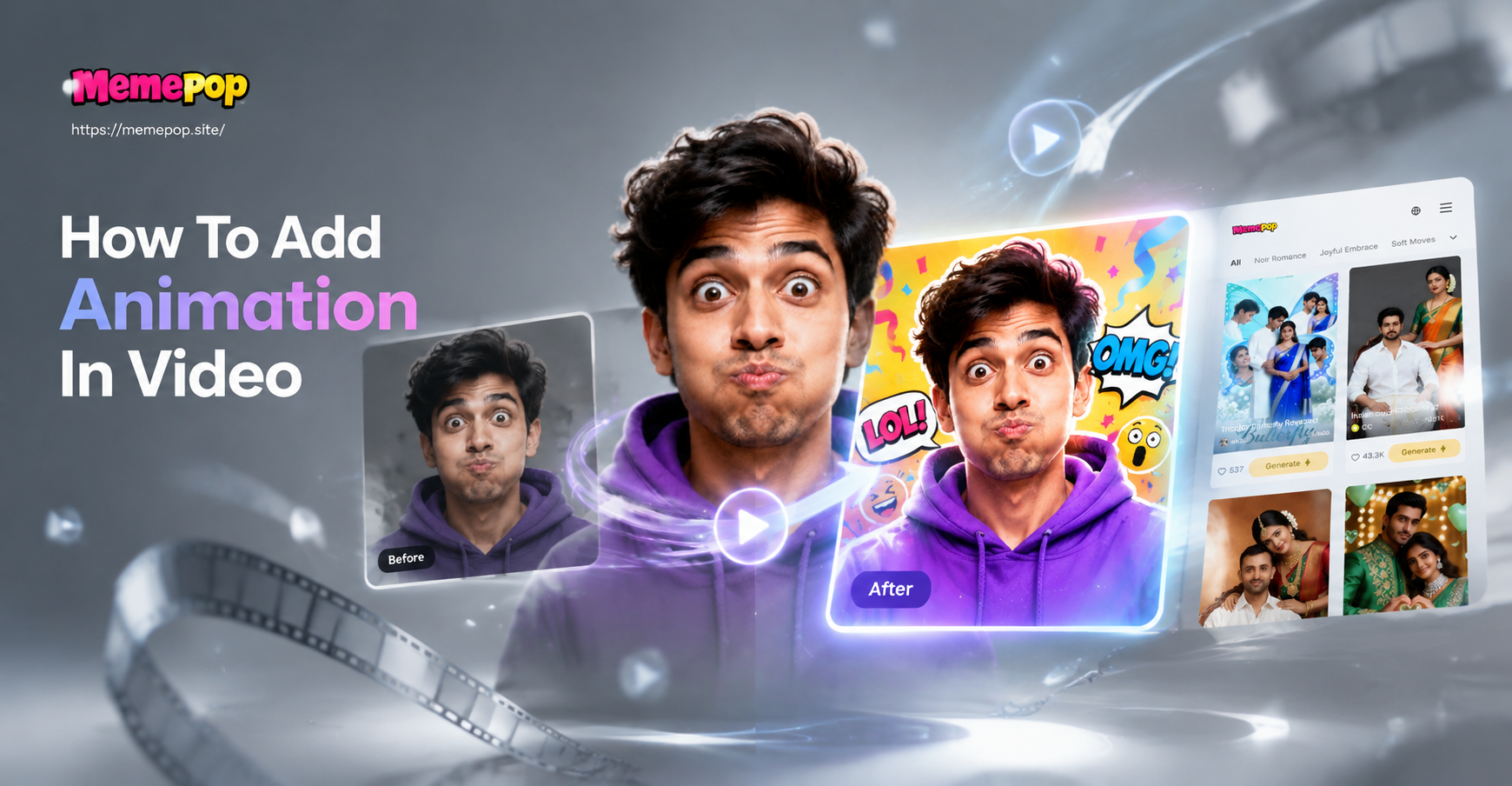
Static videos can feel flat. Adding animation gives your footage motion, energy, and a professional edge. This guide explains how to add animation in video using simple editing techniques and AI powered tools. You will learn keyframe basics, animated text, AI effects, and step by step instructions for creating animated content on your phone.
Why Animation Makes Videos Better
Animation draws the eye to important details. It helps viewers understand what to focus on, adds polish to transitions, and makes ordinary clips more shareable. For social media, animated elements can stop the scroll and boost engagement. For business videos, subtle motion can reinforce branding and highlight calls to action. The best part is that you do not need a professional studio to get started.
Four Ways to Add Animation in Video
1. Keyframe Animation in a Video Editor
Keyframes are the foundation of most manual animation. They let you set a starting point and an ending point for a property, and the software fills in the movement between them. Common properties you can animate include position, scale, rotation, opacity, and even color. To add keyframes, place the playhead where the motion should start, tap the keyframe icon, move the playhead to the end point, change the property, and add another keyframe. The video editor will create a smooth transition.
This technique works well for panning across a photo, zooming into a subject, or making a logo slide in. You can also layer multiple keyframed elements to create more complex animations.
2. Animated Text and Motion Graphics
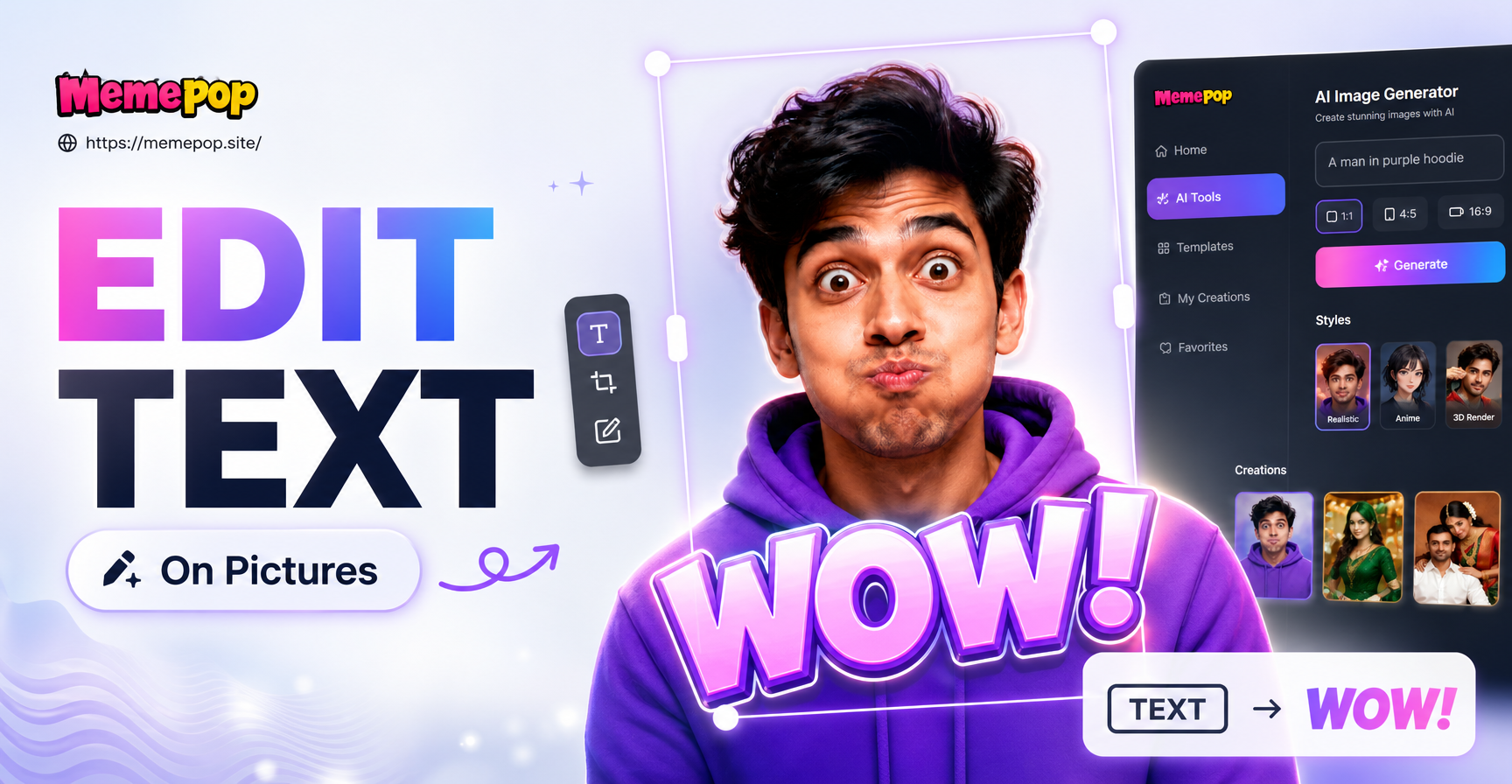
Text animation is one of the quickest ways to add energy to a video. Most editors include preset text animations such as fade, slide, typewriter, bounce, and pop. You can apply these presets to titles, lower thirds, captions, and callouts. For more control, animate the text position and opacity with keyframes.
Motion graphics include shapes, arrows, icons, and stickers that move on screen. You can place these elements over your footage and animate them to highlight a product, explain a step, or add a playful touch. This approach is especially useful for tutorials, explainer videos, and social media ads.
3. AI Powered Animation Effects
AI tools have changed how people add animation to video. Instead of manually setting keyframes, you can upload a static image and let the AI create natural motion. The memepop app offers image to video features that can make a person blink, smile, turn their head, or perform subtle movements. You can also use text to video to generate a short animated clip from a written description.
memepop includes more than a million style filters and templates, so you can apply looks such as anime, 3D clay, watercolor, cyberpunk, or cinematic quality. This is a fast way to create animated content for social media without learning complex editing software.
4. Layering Animated Elements Over Live Footage
Sometimes the best animation is a combination of real video and digital motion. You can overlay animated backgrounds, floating icons, or moving stickers on top of your original clip. Adjust the opacity, size, and blend mode so the elements look integrated rather than pasted on. This method is popular for reaction videos, vlogs, and promotional content because it adds personality without replacing the original footage.
Step by Step Guide to Add Animation in Video with memepop
If you want a quick, mobile friendly way to add animation, memepop simplifies the process. Follow these steps.
- Download the app. Get memepop from Google Play and open it on your phone.
- Choose your animation type. Decide whether you want to animate an existing photo or generate a new animated video from a text prompt.
- Upload or describe. For image based animation, upload a clear, high resolution photo. For text based animation, type a short description of the scene you want to create.
- Pick a style or effect. Browse the style filters and choose one that matches the mood. Options include realistic, anime, cinematic, 3D clay, and more.
- Generate and preview. Let the AI process the motion. Preview the result to check that the animation looks natural and matches your vision.
- Export and share. Save the video to your camera roll or share it directly to social media.
Popular Animation Styles to Try
Different styles work better for different types of content. Here are some ideas.
- Cinematic motion. Use slow zooms, pans, and fade transitions. This works for storytelling and brand videos.
- Anime style. Apply anime filters to photos and short clips. Great for fan content and creative social posts.
- 3D clay. Turn people or objects into playful clay like characters with smooth motion.
- Watercolor or artistic. Use painterly filters for dreamy, artistic animations.
- Cyberpunk. Add neon glows and futuristic overlays for tech related content.
Example AI Prompts for Animated Videos
If you use memepop's text to video feature, you can try prompts like the ones below. Adjust the details to match your subject and style.
- A young woman walks through a neon lit city street at night, anime style, smooth camera pan, cinematic lighting.
- A cute clay dog runs across a green field, 3D clay animation, bright colors, cheerful mood.
- Watercolor flowers bloom and sway in the wind, soft pastel background, gentle motion, artistic style.
- A cyberpunk robot turns its head toward the camera, glowing blue eyes, detailed mechanical parts, slow zoom.
- A hand drawn style coffee cup steams on a wooden table, cozy morning light, subtle animated steam.
Prompt quality matters. The more specific you are about the subject, motion, style, and lighting, the better the AI can match your vision. If the first result feels off, adjust the prompt by adding or removing details and try again.
Common Mistakes and How to Fix Them
Over animating the scene. When too many elements move at once, the viewer gets confused. Fix this by choosing one main focal point and keeping other motion subtle.
Using low resolution images. Blurry source photos produce blurry animations. Always start with the highest quality image you have.
Ignoring timing. Animations that are too fast feel jarring. Slow down keyframe transitions or adjust the AI motion speed so the movement feels natural.
Mixing too many styles. A video that jumps from anime to realistic to watercolor can look chaotic. Pick one style direction and stick with it throughout the clip.
Skipping the preview. Always preview before exporting. Small issues are easier to fix early than after you have shared the video.
How to Improve Weak AI Animation Results
If the AI generated animation looks stiff or unnatural, try these adjustments. Use a clearer subject with good lighting and minimal background clutter. Rephrase your text prompt to include motion words like slowly, smoothly, or gently. Choose a style filter that matches the content instead of forcing a trendy effect. If the subject is a person, use a front facing photo with the face fully visible. These small changes can significantly improve the output.
Final Thoughts
Adding animation to video is an accessible skill. Start with simple keyframe motion or animated text, then experiment with AI tools like memepop for faster results. Practice with different styles and prompts until you find a workflow that feels natural. The goal is to make your videos more engaging without spending hours in a complex editor. Download the app and try one technique today.