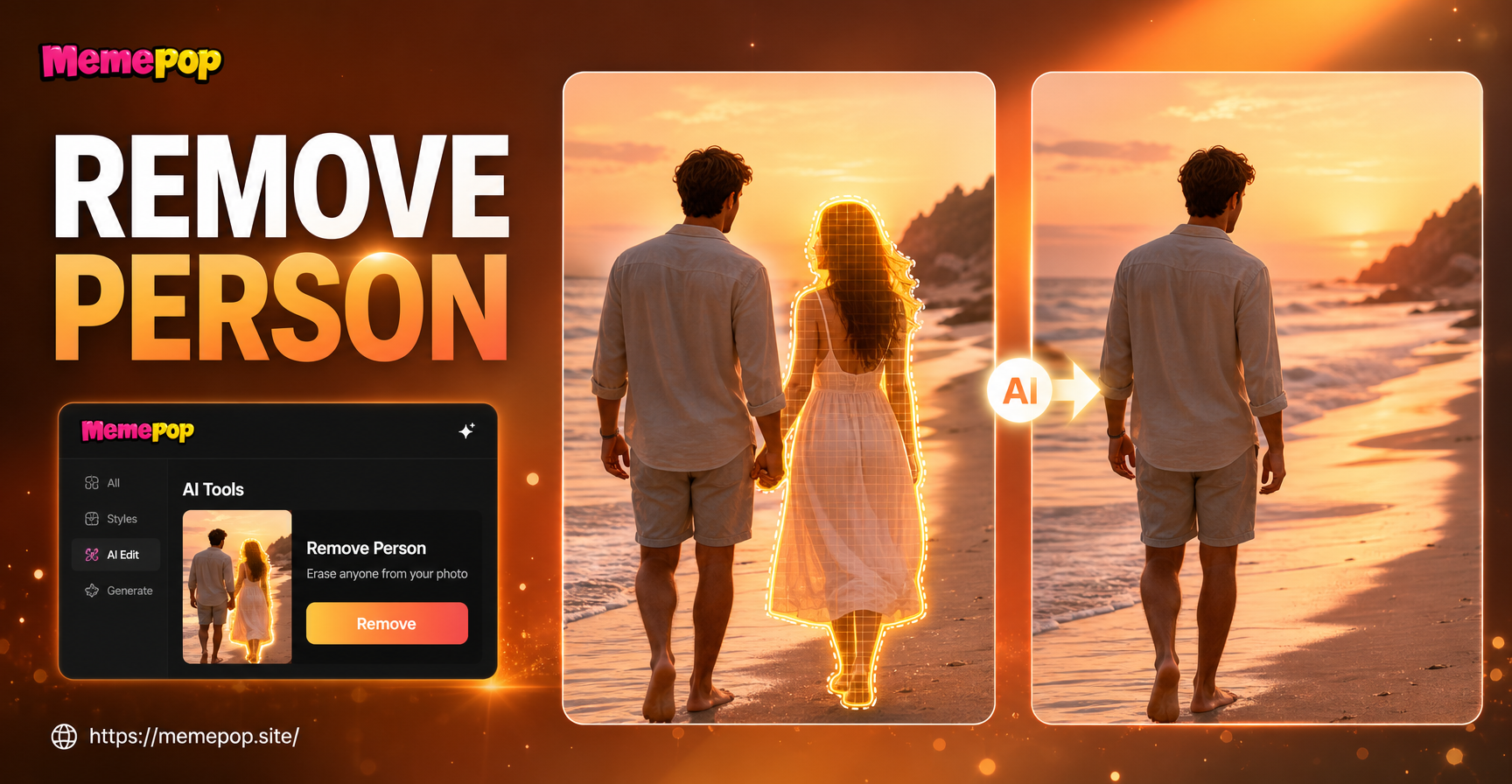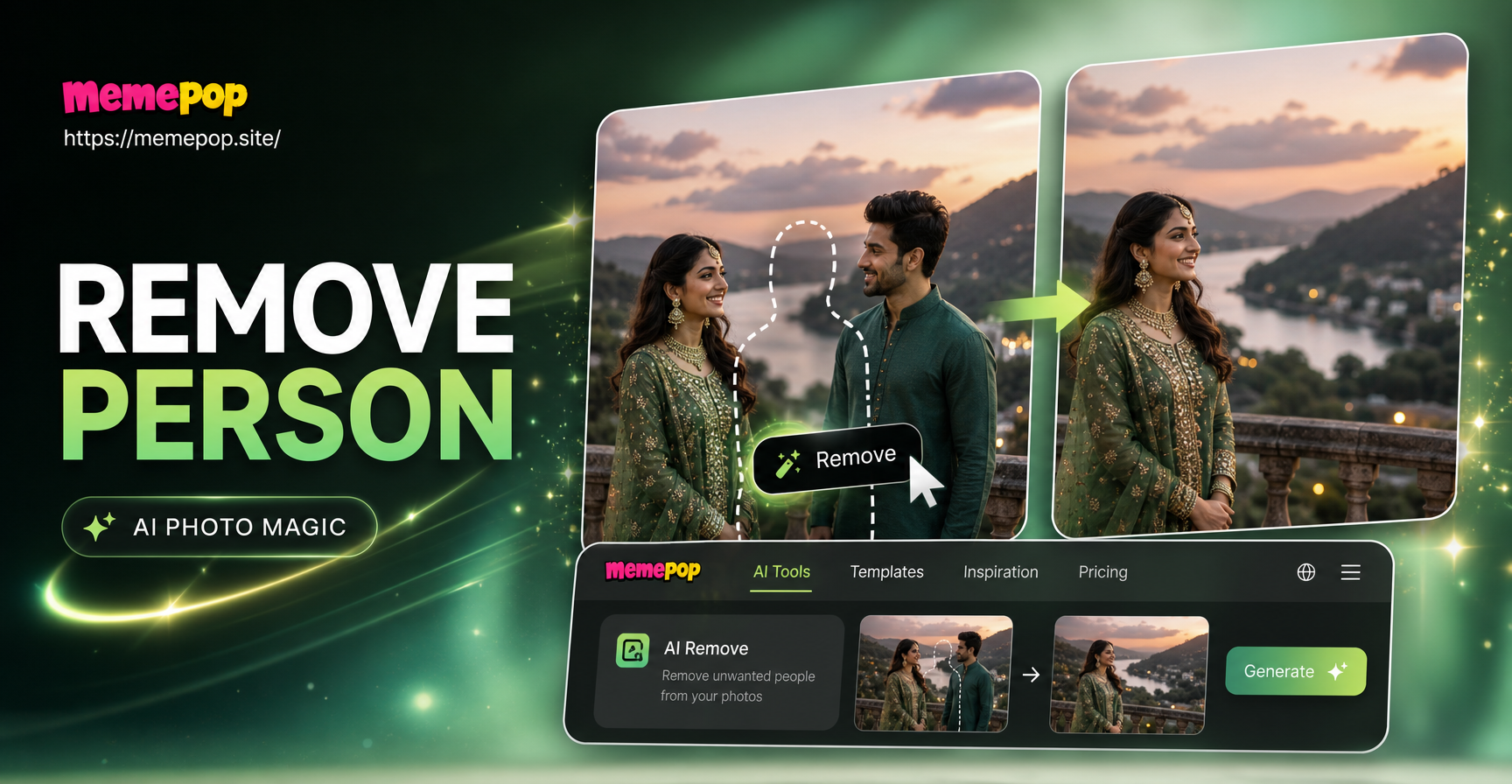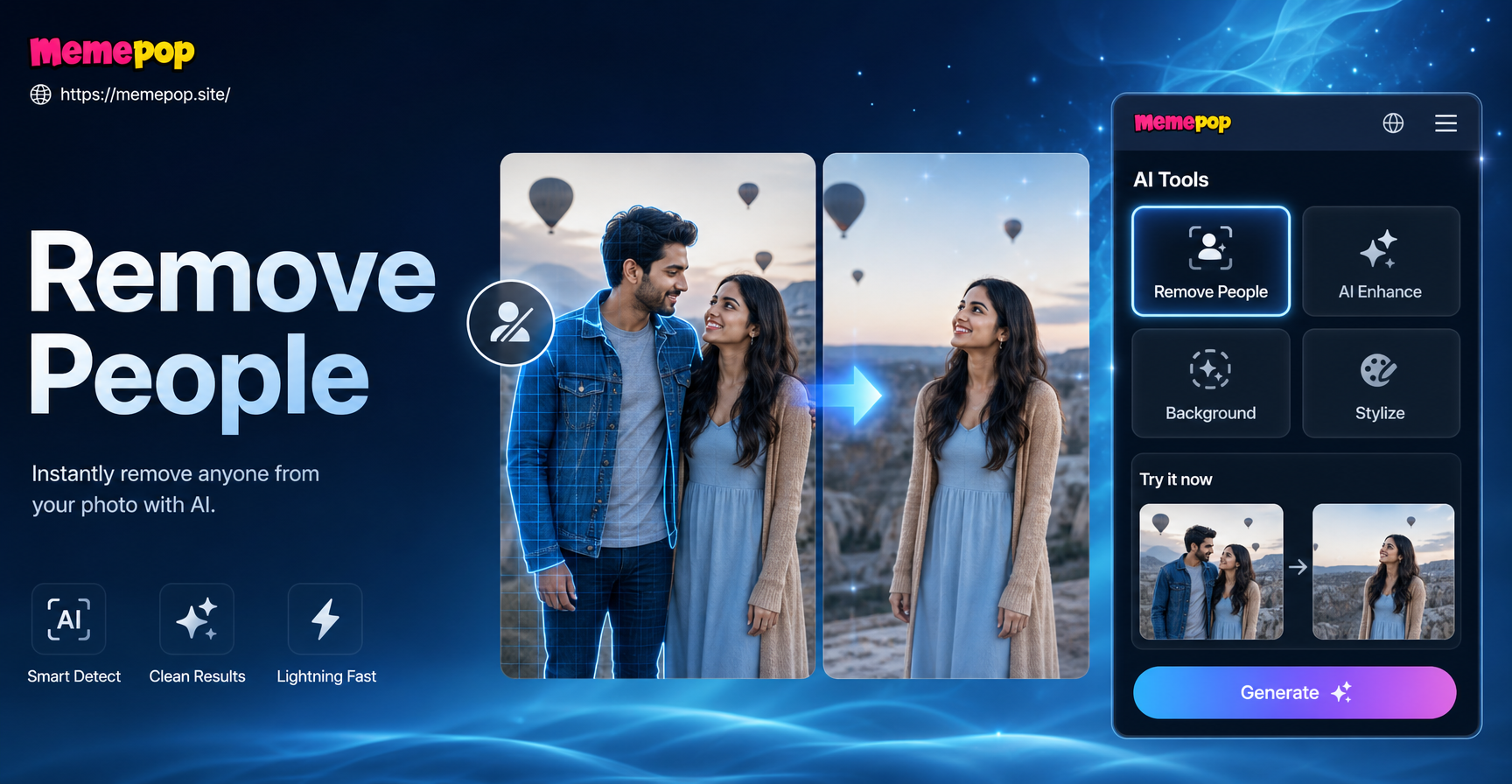
Why Removing a Person from a Photo Is Difficult
Removing someone from a picture sounds simple, but the tricky part is filling the space left behind. The background behind the person must be reconstructed, and that requires matching texture, lighting, and perspective. A rushed edit leaves smudges, warped lines, or ghost shadows that make the alteration obvious.
Understanding the Background Challenge
If the person stands in front of a plain wall, cleanup is easy. If they block a complex scene such as a crowd, a patterned background, or overlapping objects, the tool needs to infer what was hidden. That is where AI assisted editing becomes valuable, because modern models can predict realistic fill based on surrounding pixels.
When Cropping Is Not Enough
Cropping the person out only works when the person is near the edge and the remaining composition still looks good. In group photos or centered subjects, cropping cuts out important context or leaves an awkward negative space. For those cases, you need removal and background reconstruction, not just trimming.
Tools You Can Use to Remove Someone from a Picture
There are three main approaches: manual cloning tools, dedicated AI eraser apps, and all-in-one AI design tools like memepop. Each has strengths depending on photo complexity and your editing experience.
Manual Editing Tools
Programs such as Photoshop and GIMP offer clone stamp, healing brush, and content aware fill. They give fine control but require patience. You sample nearby areas and paint over the unwanted person. This works well for simple textures but can fail on complex patterns.
Dedicated AI Removal Tools
Many mobile apps specialize in object and person removal. You brush over the target and the AI replaces it with generated background. These are fast and beginner friendly. However, they may require a subscription or offer limited resolution on free tiers.
All-in-One AI Design Apps Like memepop
memepop is a mobile AI design app that combines text to image, image to image, and multi person photo processing. While it is not a dedicated eraser, its image to image feature lets you upload a photo and guide the AI to restyle or reconstruct a scene. You can describe the desired clean version and generate several variations until the unwanted person is gone or visually replaced. This creative workflow is useful for stylized edits, social media posts, and quick experiments.
How to Remove Someone from a Picture with memepop
The memepop app is available on Google Play. Follow this workflow to try AI assisted removal and scene cleanup.
Step 1 Download and Open memepop
Install memepop from Google Play and open the app. The interface is designed for simple one tap creation without complex prompt engineering.
Step 2 Upload Your Photo
Choose the image to image feature and upload the picture containing the person you want to remove. The app accepts common photo formats and lets you preview before editing.
Step 3 Choose an Image-to-Image Editing Mode
Select a style or transformation template that suits your scene. You can keep the original realistic look or apply a creative style while the AI processes the image.
Step 4 Describe the Desired Result
In the prompt box, describe the final image without the unwanted person. For example: A clean empty bench in the same park, same lighting, same angle, no people. The more specific you are, the better the AI can reconstruct the background.
Step 5 Generate and Refine
Run the generation and review results. Pick the best version, then download or share it. If the first attempt leaves artifacts, adjust your prompt or try a different style template.
Alternative Methods for Quick Removal
Crop the Person Out
Use your phone’s built in editor to crop the image so the unwanted person is outside the frame. This is fastest, but only works when the person is at the edge and the new composition still makes sense.
Use the Clone Stamp or Healing Brush
If you have access to a photo editor, sample a clean area near the person and paint over them. Work in small strokes and resample often to avoid repeating patterns. This method is time consuming but precise for stone, grass, or uniform backgrounds.
Blur or Cover the Person
When removal is not possible, you can blur the person, place a sticker, or crop with a different aspect ratio. This hides the subject without reconstructing the background. It works for privacy edits and casual sharing.
Tips for Getting the Best Results
Keep the Background Simple
Plain walls, open skies, and smooth surfaces are much easier to reconstruct than busy backgrounds. If you plan to remove someone later, take the photo with a clean backdrop.
Use High Resolution Photos
Higher resolution gives the AI more detail to work with and makes manual cloning less obvious. Avoid heavily compressed or low light images when you need a clean edit.
Combine Tools for Complex Scenes
For difficult photos, use a dedicated eraser first, then polish with a clone stamp or healing brush. You can also use memepop’s image to image to generate a stylized version that hides minor artifacts behind a creative look.
Common Mistakes to Avoid
Overediting the Background
Too much cloning or blur creates a plastic look. Keep edits subtle and zoom out frequently to check the overall balance.
Ignoring Shadows and Reflections
Removing a person but leaving their shadow or reflection is a dead giveaway. Check mirrors, windows, and the ground after editing.
Leaving Traces of the Removed Person
Look for stray hands, hair, or clothing edges at the boundary. Use a soft brush or a second AI pass to clean up leftover pixels.
When to Use AI Instead of Manual Editing
AI assisted tools save time on complex backgrounds and low detail areas. Choose AI when you need a quick social media edit, when the background is too intricate for manual cloning, or when you want multiple creative variations. Manual editing remains better for precise professional retouching where you need full control.
Final Thoughts
Learning how to remove someone from a picture takes practice, but the right method depends on the photo. Start with cropping for simple cases, use dedicated eraser apps for fast fixes, and explore AI design tools like memepop for creative image to image edits. Download memepop today and experiment with different ways to clean up your favorite photos.