Why Remove a Person From a Photo?
Removing a person from a photo is one of the most common photo editing tasks. Maybe a stranger walked through the background of your vacation shot, or an ex partner is still in your favorite picture. The good news is that you do not need to be a professional designer to get a clean result. Modern AI tools and classic manual techniques make it possible to erase someone from a photo in minutes.
This guide covers six reliable methods for how you can remove a person from a photo. You will learn when to use automatic AI removal, how to use content-aware fill and clone stamp tools, and when it is easier to crop or replace the background. By the end, you will know exactly which method fits your image and skill level.
Before You Begin: Choose the Right Photo Editor
Your choice of editor affects how easy the process will be. For quick automatic removal, AI powered mobile apps and online tools work well. For precise manual control, desktop editors like Photoshop or GIMP give you advanced tools such as content-aware fill and clone stamp. If you prefer an all in one AI creative editor, memepop offers image to image transformations and style filters that can help you reimagine a photo after you remove the person. Keep a copy of the original image before making any edits.
Method 1: Use an AI Object Removal Tool
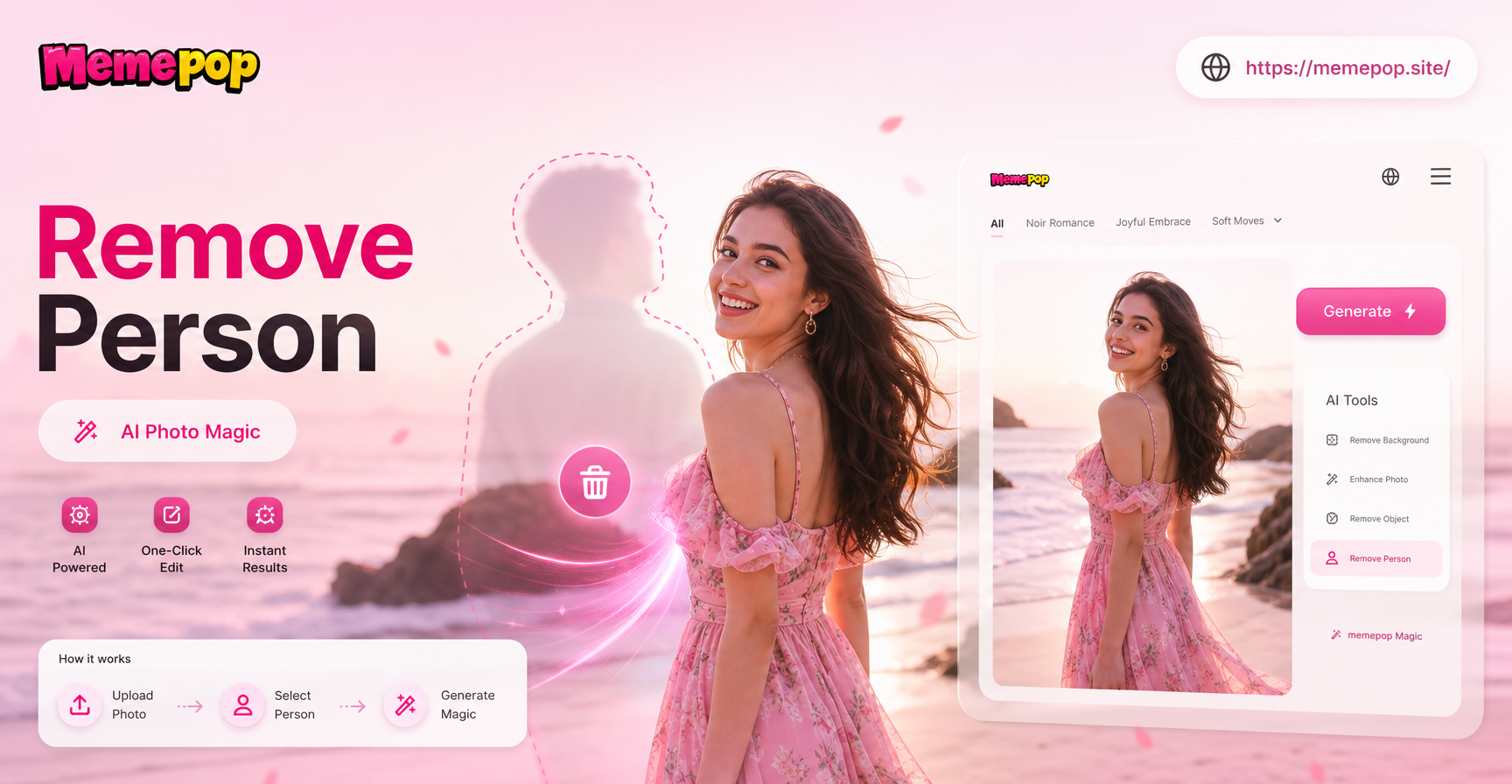
AI object removal is often the fastest way to remove a person from a photo. Many modern apps let you draw a rough mask over the person, and the AI automatically fills the space with matching background pixels. This works well when the background is relatively simple, such as a plain wall, a beach, or a blurred outdoor scene.
How AI Removal Works
The AI analyzes the surrounding pixels, textures, lighting, and perspective. It then generates a new patch that blends with the rest of the image. Some tools also let you adjust the brush size and edge softness for better results.
Best Practices for AI Removal
- Zoom in and outline the person carefully, including shadow areas.
- If the result looks smudged, remove the person in smaller sections.
- Use a heal or refine brush to clean up leftover artifacts.
- Try the process twice if the first attempt produces visible seams.
AI tools do not always work perfectly on complex backgrounds with many overlapping objects. In those cases, combine AI removal with manual touch ups.
Method 2: Content-Aware Fill in Photoshop or GIMP
Content-aware fill is a powerful feature in Adobe Photoshop and the free alternative GIMP. It lets you select the person and automatically replace that area with content sampled from the surrounding image. This method gives you more control than fully automatic AI removal.
Step by Step Content-Aware Fill
- Open your photo in Photoshop or GIMP.
- Use the Lasso Tool or Pen Tool to create a selection around the person, leaving a small margin around the edges.
- For Photoshop, go to Edit, then Content-Aware Fill. For GIMP, use the Resynthesizer plugin or the Heal Selection filter.
- Preview the result and adjust the sampling area if needed.
- Apply the fill and use the Clone Stamp or Healing Brush to fix any remaining imperfections.
Content-aware fill works best on backgrounds with repeating patterns, such as grass, sand, brick walls, or water. It struggles with detailed faces or complex structures directly behind the person.
Method 3: Manual Clone Stamp Tool
The clone stamp tool is a classic manual method for removing someone from a photo. It copies pixels from one part of the image and paints them over the person. This gives you complete control, but it requires patience and a steady hand.
Clone Stamp Tips
- Choose a source area close to the person so the lighting and texture match.
- Use a soft brush with low opacity for smoother blending.
- Sample frequently by holding Alt or Option and clicking on different source points.
- Work in small sections and zoom in often.
- Use a separate layer for the clone work so you can erase mistakes without damaging the original.
Clone stamp is ideal for removing small objects or a person in a busy scene where automatic tools create noticeable artifacts. It works well for erasing a single person from a group photo if you have enough surrounding background to sample from.
Method 4: Crop or Reframe the Image
Sometimes the simplest way to remove a person from a photo is to crop them out. If the person is near the edge of the frame, cropping can eliminate them entirely without any visible editing. Reframing can also improve the composition of your photo.
When Cropping Works Best
- The person is located at the edge or corner of the image.
- You can afford to lose part of the background without cutting off important subjects.
- The photo has enough resolution to remain sharp after cropping.
- You want a closer, more focused composition on the main subject.
Cropping does not work if the person is in the center of the image or if you need to preserve the full scene. In those cases, combine cropping with another removal method.
Method 5: Replace the Background
If the background is too complex to repair, replacing it entirely is a smart alternative. After you remove the person, you can place the remaining subject on a new, clean background. This is especially useful for portrait photos, product shots, or social media content.
Combining Background Replacement with Person Removal
First, remove the unwanted person using one of the methods above. Then use a background remover tool to isolate the main subject. Finally, insert a new background image or a solid color. Many AI design apps, including memepop, offer background transformation and style filters that can help you create a polished final image from the edited photo.
Background replacement works best when the remaining subject has clear edges. If the person you remove was overlapping the main subject, you may need to manually repair the subject edges before placing the new background.
Method 6: Use AI Image Generation to Rebuild the Scene
For difficult removals, you can use AI image generation to rebuild the missing area. This approach is useful when the person covered an important part of the background, such as a building, a tree, or a piece of furniture. AI generators can create a new version of the scene that looks natural and coherent.
How Memepop Can Help
Memepop is a mobile AI design app with image to image and text to image features. After you remove a person from your photo, you can upload the edited image to memepop and apply a style filter or generate a new background element. The app offers a large library of style templates, from realistic photography to anime and cinematic looks. While memepop does not replace a dedicated object removal tool, it can help you enhance the final result after the person is gone.
To use memepop for this workflow, download the app from Google Play. Upload your cleaned photo, choose a style template, and let the AI refine the scene. You can also use text to image to generate a matching background if the original background is too damaged to repair.
Common Mistakes to Avoid
- Removing too much at once: Work in small sections to avoid smudges and unnatural patches.
- Ignoring shadows: The shadow of the removed person often remains. Use clone stamp or healing brush to erase shadows as well.
- Using a hard brush for blending: A soft brush with low opacity produces more natural results.
- Not saving a copy of the original: Always keep the original photo in case you need to start over.
- Over relying on one tool: Combine AI removal, clone stamp, and content-aware fill for the best outcome.
Choosing the Right Method for Your Photo
The best method depends on the complexity of the background and your skill level. For a quick fix on a simple background, use an AI object removal tool. For photos with repeating textures, content-aware fill works well. For precise manual control, use the clone stamp. If the person is near the edge, just crop. When the background is ruined, replace it or use AI generation to rebuild the scene. You can often combine two or three methods to get a flawless result.
Final Thoughts
Learning how to remove a person from a photo is a valuable skill for anyone who edits images regularly. The process is no longer limited to professionals with expensive software. With AI tools, free editors, and mobile apps, you can erase unwanted people from your photos in minutes. Start with the simplest method for your image, then refine the result with manual touch ups. If you want to take your edited photo to the next level, download memepop and explore creative AI filters that make your clean image stand out.