Why Would You Need to Edit Text on a Picture?
Editing text on a picture is a surprisingly common need. You might have a screenshot with a typo that needs correcting, a photo of a storefront where the sign text should say something different, or a document image where a name or date is wrong. Sometimes you want to remove a distracting watermark, translate a label, or update an old poster for a new event. Whatever the reason, knowing how to edit text on a picture gives you control over the final image without having to reshoot or recreate it from scratch.
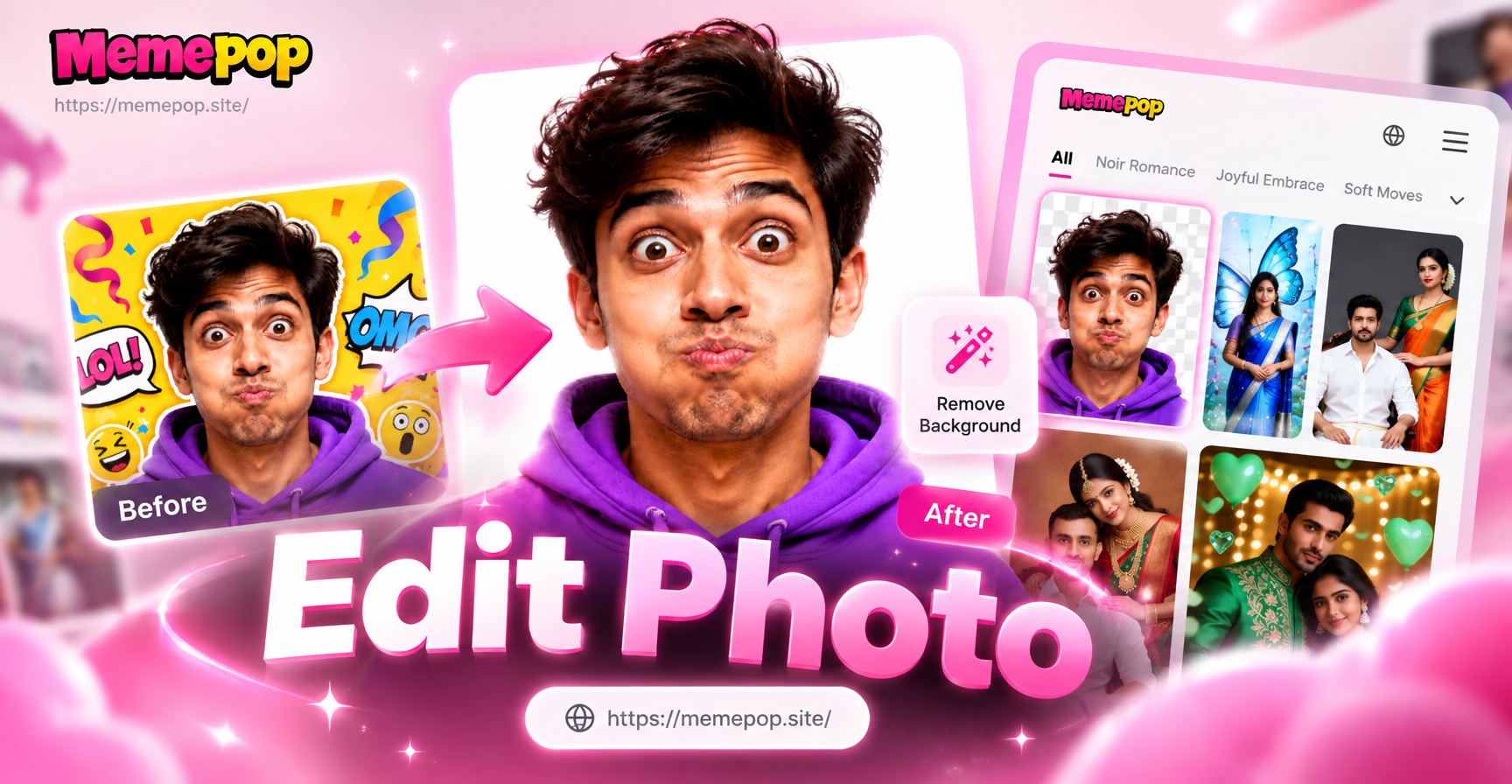
There are several ways to approach this task, from traditional photo editing software to modern AI tools. For simple text removal or replacement, manual methods often give the most precise results. For creative transformations where the text is part of a larger style change, AI-powered tools like memepop can be a fast and fun alternative. In this guide, we will walk through the most practical methods, including step by step instructions for both manual and AI assisted editing.
Method 1: Manual Editing with Photo Editors
If you need pixel perfect control, manual editing is still the gold standard. Tools like Adobe Photoshop, GIMP, or even free online editors like Photopea let you remove existing text and type new text exactly where you want it. Here are two common manual techniques.
Using the Clone Stamp or Healing Brush
The Clone Stamp tool samples pixels from one part of the image and paints them over another area. The Healing Brush goes a step further by blending the sampled texture with the surrounding lighting and color. To remove text from a picture:
- Open the image in your editor.
- Select the Clone Stamp or Healing Brush tool.
- Hold Alt (or Option on Mac) and click on a clean area near the text you want to remove. This sets the sample point.
- Release Alt and paint over the text carefully. Work in small strokes, resampling frequently to avoid repeating patterns.
- Zoom in to check for any smudges or leftover pixels, then touch up as needed.
After removing the original text, use the Type tool to add new text. Choose a font, size, and color that matches the original style as closely as possible. Place the new text in the correct position and adjust the layer opacity or blending mode if necessary to make it look natural.
Using Content Aware Fill
Content Aware Fill is available in Photoshop and some other editors. It automatically analyzes the surrounding pixels and fills the selected area with a plausible background. This is often faster than manual cloning for removing text on a simple background.
- Select the text using the Lasso, Rectangular Marquee, or Quick Selection tool.
- Go to Edit and choose Content Aware Fill.
- Adjust the sampling area if needed. The preview will show what the fill will look like.
- Click OK to apply the fill.
- Clean up any imperfect areas with the Healing Brush.
Once the text is gone, you can add new text with the Type tool as described above. This method works best on textures like grass, sky, or paper, but may struggle with complex backgrounds or text that overlaps important objects.
Method 2: AI Powered Text Removal
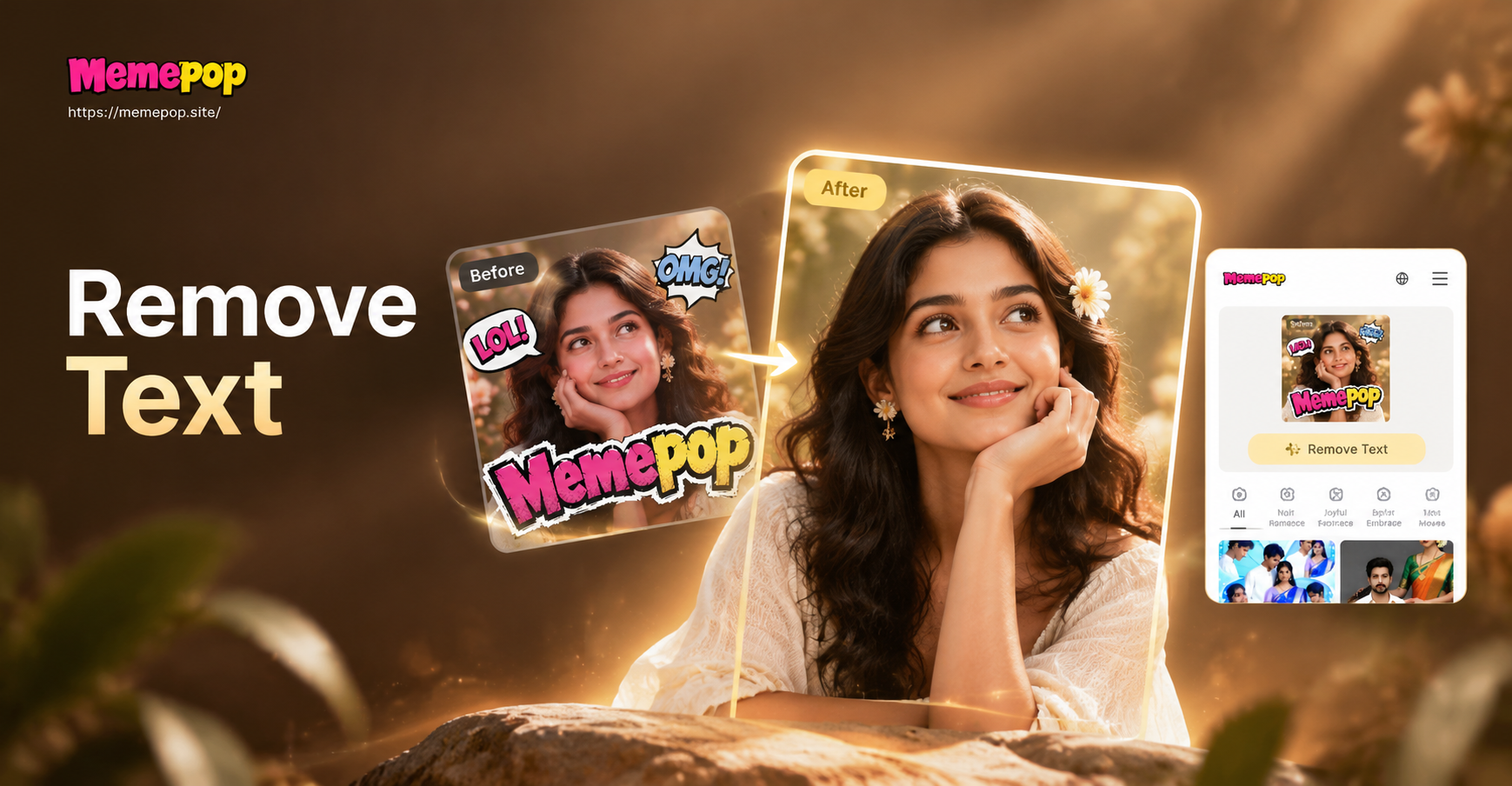
AI has made text removal much easier, especially for images with complex backgrounds. Instead of manually cloning every pixel, you can use a generative model to erase the text and reconstruct the underlying scene. This approach is available in several forms.
Online Inpainting Tools
Many free and paid online tools now offer inpainting features that can remove text or objects from an image. You simply upload your picture, mark the text area with a brush or selection tool, and the AI fills the space with what it thinks should be there. These tools work surprisingly well on natural scenes, product photos, and even screenshots. The downside is that you usually have less control over the final result than with manual editing, and the AI may occasionally introduce new artifacts.
Generative Fill in Photoshop
Adobe Photoshop now includes a Generative Fill feature powered by Adobe Firefly. You can select the text and type a prompt like "remove text" or "clear background." The AI generates several options, and you can choose the one that looks best. This combines the convenience of AI with the precision of a professional editor. However, it requires a Creative Cloud subscription and may not always produce perfect text free areas, especially if the text is large or sits on a very busy background.
While these AI methods are powerful, they are mainly designed for removing text. If you want to change the text to something different, you will still need to add new text manually or use a generative image model to recreate the entire image with the new text included.
Method 3: Editing Text with memepop AI
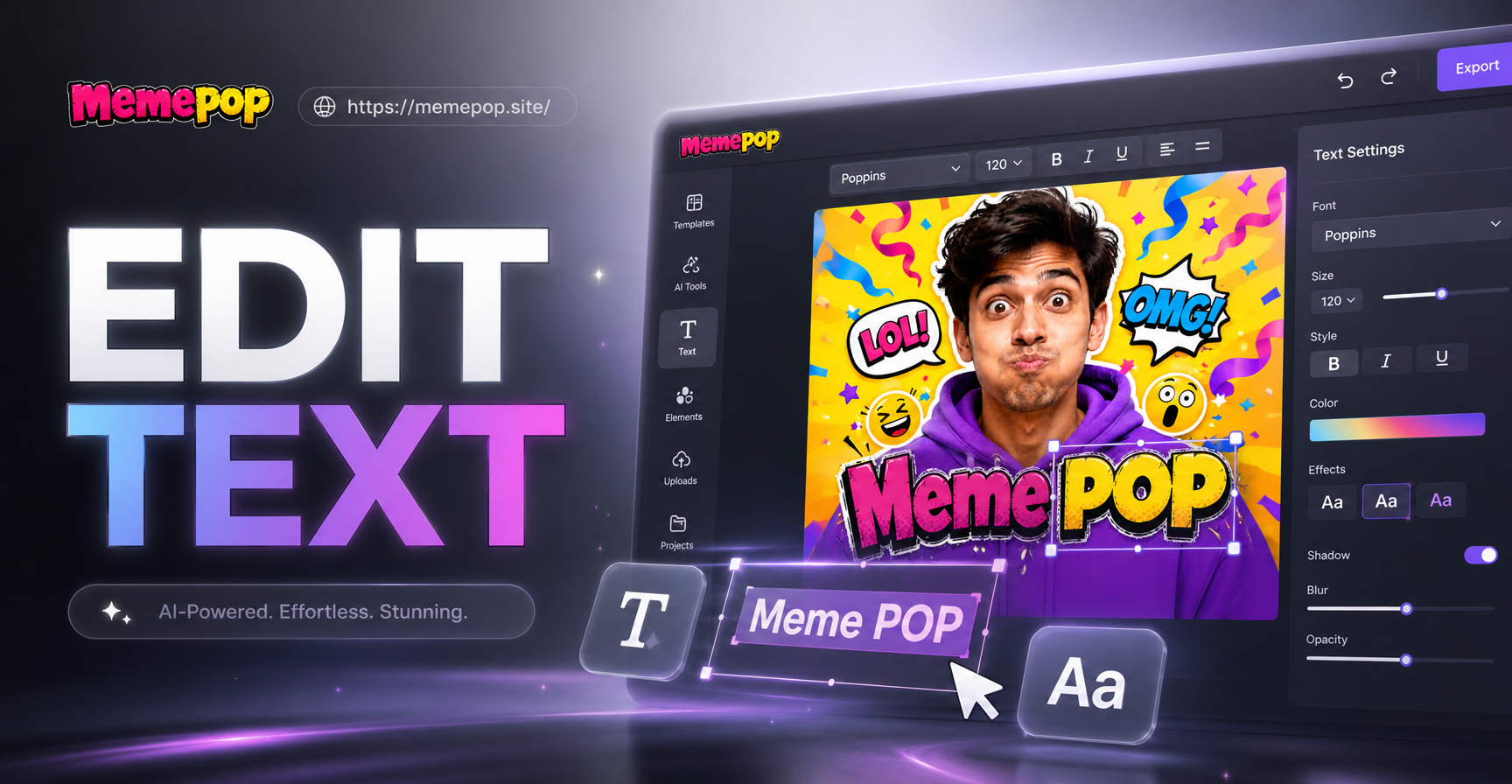
memepop is a mobile AI design app available on Google Play. It focuses on image generation, style transfer, and photo transformation. While it is not a dedicated text editor, you can use its image to image feature to change the overall look of a picture, including any text that appears in it. This works best when you want to completely restyle the image or change the text along with other visual elements, rather than making a single precise typo fix.
Here is how you might use memepop for a creative text edit:
- Download the memepop app from Google Play and open it.
- Choose the image to image option.
- Upload the picture that contains the text you want to change.
- Enter a prompt describing the new image, for example "change the cafe sign to say Open Daily and make it look like a warm summer evening."
- Pick a style filter or template, such as realistic photography or anime.
- Generate the image. memepop will create a new version based on your prompt while trying to preserve the overall composition.
Because memepop uses generative AI, the exact text output may vary. It is not the best tool for correcting a single typo in a document, because the AI might alter other details or produce text that is not perfectly legible. However, if you want to change a sign, poster, or label as part of a larger style transformation, memepop can produce fun and surprising results quickly. For precise text changes, combine memepop with a traditional editor: use the AI to restyle the image, then use a photo editor to fix any text that still needs exact wording.
Tips for Getting the Best Results When Editing Text
No matter which method you choose, a few practices will improve your final image.
- Start with the highest resolution version of the picture you can find. More pixels mean better detail and cleaner edits.
- For manual editing, zoom in to at least 200 percent when cloning or healing. This helps you catch small mistakes.
- When using AI tools, write clear and specific prompts. Instead of saying "change text," describe exactly what the new text should say and how it should look.
- If the text sits on a busy or patterned background, manual cloning or content aware fill may produce better results than AI.
- Always save a copy of the original image before you start editing. You never know when you might need to start over.
Common Challenges and How to Solve Them
Editing text on a picture is not always straightforward. Here are some frequent problems and practical solutions.
- Leftover smudges after cloning: Use the Healing Brush instead of the Clone Stamp, or lower the tool opacity and build up the correction gradually.
- New text looks fake: Match the original font, size, color, and shadow. Use a slight blur or add noise to blend the new text with the image.
- AI inpainting leaves artifacts: Run the fill twice in small sections, or use a manual touch up tool to clean the area afterward.
- Text is too small to edit cleanly: Consider cropping or upscaling the image first, or accept that the text is unreadable and replace the entire area with a clean background.
- AI generated text is misspelled: If you use a generative model like memepop, the AI may not reproduce text accurately. For any text that must be exactly correct, add it manually in a photo editor after generating the base image.
Conclusion: Choose the Right Tool for the Job
Editing text on a picture can be as simple as cloning out a few letters or as creative as restyling an entire scene with AI. For precise typo fixes and document corrections, manual photo editing remains the most reliable approach. For removing text from complex backgrounds, AI inpainting tools are fast and often effective. For playful transformations where the text is part of a larger visual change, memepop's mobile AI image generation offers a quick and entertaining option.
Whichever method you use, take your time and experiment. The more you practice, the better you will become at making text edits look completely natural. And if you want to explore creative image transformations on your phone, download memepop from Google Play and start turning your pictures into something new today.